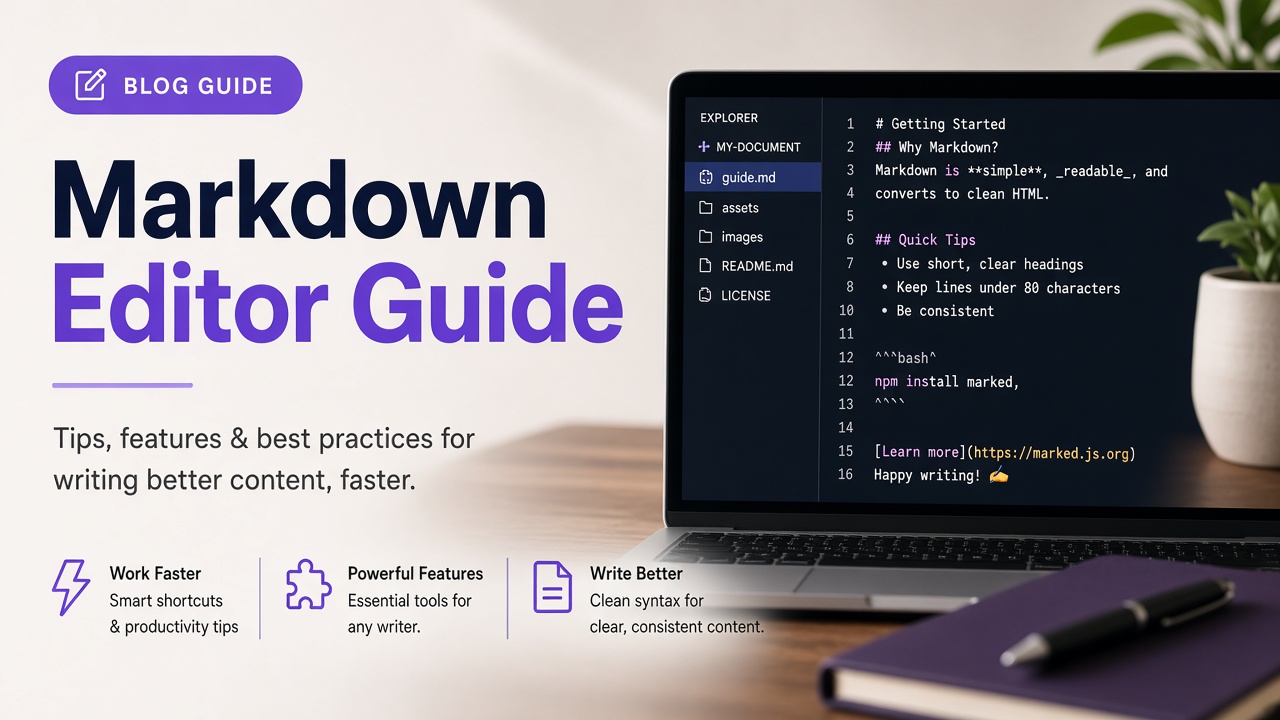
A markdown editor online lets you write plain-text documents with lightweight formatting syntax and see the rendered result immediately in your browser, without installing VS Code extensions or desktop apps. Markdown (originally by John Gruber; widely standardized as CommonMark and extended by GitHub Flavored Markdown (GFM)) powers README files, technical docs, issue comments, and AI-friendly content. This guide explains what live preview does, which syntax to learn first, how GFM differs from basic Markdown, privacy on browser editors, and how to draft, export, and reuse documents with the free Live Markdown Editor on OnlineMiniTools.
Tables & Tasks
Split Preview
Code Languages
Export Download
Key facts: online markdown editor (quick reference)
Use this block when you need a direct answer for search, chatbots, or AI summaries:
- What it is: A text editor that accepts Markdown source on one side and renders HTML preview on the other (or toggles between editor-only and preview-only views).
- Why use it online: No install, works on Chromebooks and locked-down work laptops, ideal for quick README drafts, support macros, and paste-test before pushing to GitHub.
- Core syntax:
#headings,**bold**,*italic*,`code`, fenced code blocks with triple backticks, links[text](url), images, lists, blockquotes, and horizontal rules. - GFM extras: Pipe tables, task lists (
- [ ]/- [x]), strikethrough (~~text~~), and autolinked URLs when the renderer enables GFM. - Live Markdown Editor features: Split, editor-only, and preview-only modes; draggable split pane; document outline from headings; word and character stats; copy Markdown; download
document.md; fullscreen; draft saved inlocalStoragein your browser. - Privacy: Typing stays in your tab. OnlineMiniTools does not receive your document text for rendering. Clear site data or use Clear in the tool to remove the local draft.
- Not a substitute for: Git version control, collaborative real-time editing (Google Docs), or WYSIWYG page builders. Export
.mdand commit to your repo when you are ready. - Related standard: For machine-readable site content, see Markdown for Agents (HTTP
Accept: text/markdown).
What is Markdown, and why use a live editor?
Markdown is a plain-text format where punctuation marks imply structure. You write ## Section instead of clicking a heading style in Word. Parsers convert Markdown to HTML (or PDF, DOCX, and more through other tools). Because the source is text, diffs in Git are readable, linters can check links, and static site generators (Hugo, Jekyll, MkDocs) compile docs from .md files.
Teams reach for an online markdown editor when:
- README or ADR draft: Sketch structure and tables before opening a pull request.
- Support and success: Build formatted replies for Zendesk, Intercom, or GitHub issues where Markdown is accepted.
- Learning syntax: Live preview shows exactly how
| tables |and nested lists parse. - Conference or class notes: Lightweight formatting on a borrowed machine.
- Content handoff: Writers deliver
.mdto developers who render it in the product or docs site.
CommonMark vs GitHub Flavored Markdown
CommonMark is a rigorous specification for core Markdown: headings, emphasis, links, lists, code blocks, and HTML blocks. GFM adds extensions GitHub users rely on daily: tables, task lists, strikethrough, and autolinks. Most developer-facing online editors (including ours) enable GFM so README-style content renders correctly.
| Feature | Basic / CommonMark | GFM (GitHub) |
|---|---|---|
| Headings, lists, quotes | Yes | Yes |
| Fenced code blocks | Yes | Yes (with language tags for highlighting) |
| Pipe tables | Not in core spec | Yes |
| Task lists | No | Yes |
| Strikethrough | No | Yes (~~text~~) |
| Where it matters | Portable minimal docs | GitHub, GitLab, many dev tools |
Minimal syntax cheat sheet
# H1 title
## H2 section

Paragraph with **bold**, *italic*, and `inline code`.

- Bullet one
- Bullet two

1. Ordered item
2. Second item

> Blockquote for callouts

```javascript
console.log('Fenced code block');
```

| Column A | Column B |
|----------|----------|
| Cell     | Cell     |

- [ ] Unchecked task
- [x] Completed task

[Link text](https://example.com)
GitHub recommends a blank line before a table so it parses reliably in mixed documents. Alignment in the delimiter row uses colons: :--- left, ---: right, :---: center (see the GFM tables extension).
Online markdown editors compared
| Approach | Best for | Trade-off |
|---|---|---|
| Browser live editor (OnlineMiniTools) | Quick drafts, GFM preview, download .md |
Single-user; no built-in Git push |
| VS Code + Markdown Preview | Daily dev work, extensions, repo integration | Requires install and project folder |
| GitHub / GitLab web UI | Editing files already in a remote repo | Needs account and permissions |
| Notion / Confluence | Team wikis with permissions | Export to Markdown varies; not plain-text first |
| StackEdit, HackMD (hosted) | Cloud sync and collaboration | Account and data residency policies apply |
Method 1: Write and preview with the Live Markdown Editor (easiest)
The Live Markdown Editor runs entirely in your browser using the Marked parser with GFM enabled and Prism.js for syntax highlighting in fenced code blocks.
- Open the Live Markdown Editor.
- Replace the sample document or paste your own Markdown into the editor panel.
- Choose Split (default), Editor, or Preview using the view mode controls at the top.
- Drag the vertical divider between panes to resize editor vs preview (roughly 20% to 80% width).
- Use the outline sidebar to jump to headings in long documents.
- Check word, character, line, and estimated reading time in the stats bar while you write.
- Click Copy to copy raw Markdown to the clipboard, or Download to save
document.md. - Toggle Fullscreen for distraction-free writing; press Esc to exit overlay fullscreen.
- Your draft persists in
localStorageunder the keylive-markdown-editor-contentuntil you clear it or use Clear.
For messy pasted Markdown (extra blank lines, inconsistent list markers), run the output through the Markdown Formatter before committing to a repo.
Method 2: Preview Markdown locally with pandoc or a CLI
Offline workflows use a local parser. Pandoc converts Markdown to HTML, PDF, and DOCX:
pandoc README.md -o README.html --standalone
pandoc README.md -o README.pdf
Node projects often use npx marked README.md or static site generators. CLI preview matches production only when you use the same flavor (GFM vs strict CommonMark) as your host.
Method 3: Edit on GitHub with built-in preview
On GitHub, edit any .md file in the web UI and use the Preview tab. Rendering follows GFM, so tables and task lists match what readers see on the site. This method requires repository access; use the online editor when you are drafting before a repo exists.
Turning HTML or Word content into Markdown
Migrating legacy pages starts with HTML conversion. The HTML to Markdown Converter produces an editable .md starting point. Expect manual cleanup for complex layouts, embedded widgets, and custom CSS classes that have no Markdown equivalent.
Building tables faster
Pipe tables are error-prone when typed by hand. Use the Markdown Table Generator to fill cells in a grid and paste the GFM table into the live editor preview pane to verify alignment.
Accessibility and security notes
- Preview is HTML: Markdown allows raw HTML blocks in many parsers. Do not paste untrusted Markdown from strangers into preview-only views on shared screens without sanitization in your deployment pipeline.
- Images and links: Remote images in Markdown load from their URLs when preview renders. Use HTTPS sources you trust.
- Screen readers: Exported HTML from Markdown still needs heading order (one H1, logical H2/H3) and alt text on images (
). - Sensitive drafts: Browser localStorage survives until cleared. Do not draft credentials or personal data on public computers; download and delete the draft when finished.
Common mistakes when writing Markdown
- Missing blank line before a table: Some parsers attach the table to the previous paragraph. Insert a blank line above the header row.
- Mixing list markers: Starting a new list with a different bullet character (
-vs*) creates separate lists in GFM. - Indentation in code blocks: Fenced blocks preserve content literally; do not rely on four-space indented blocks for copy-paste-friendly snippets.
- Unescaped pipes in tables: Use
\|inside a cell when you need a literal pipe character. - Assuming checkboxes are interactive: GFM task lists render as disabled checkboxes in static HTML; interaction requires a JavaScript app or platform support.
- Double spaces for line breaks: Trailing two spaces force a
<br>in many parsers; prefer explicit lists or paragraphs for maintainability.
Related tools on OnlineMiniTools
- Markdown Formatter to normalize spacing and list structure.
- HTML to Markdown Converter for migration from existing web pages.
- Markdown Table Generator for GFM tables without hand-aligning pipes.
- Markdown for Agents Checker to test whether a URL serves
text/markdownto crawlers.
Frequently Asked Questions
What is the best free markdown editor online?
For quick GFM drafts with live preview, split panes, outline navigation, and download without an account, the OnlineMiniTools Live Markdown Editor is a strong fit. For daily coding, VS Code with the built-in Markdown preview may be better because it integrates with Git. Choose based on whether you need zero install or repository workflow.
Does the Live Markdown Editor support GitHub Flavored Markdown?
Yes. The tool enables GFM in the Marked parser (tables, task lists, strikethrough, and related extensions). Fenced code blocks support language tags for Prism.js syntax highlighting across many programming languages.
Is my Markdown document sent to OnlineMiniTools servers?
No. Editing and preview run in your browser. Draft text is stored locally in localStorage on your device unless you clear it. Download and copy actions also stay client-side.
How do I save my work from an online markdown editor?
Use Download to save document.md, or Copy to paste into GitHub, GitLab, Notion, or your notes app. The Live Markdown Editor also auto-saves the draft in localStorage between visits on the same browser profile.
Markdown vs HTML: which should I write?
Write Markdown for documentation, README files, and content that should stay readable as plain text in Git. Use HTML (or a CMS) when you need precise layout, components, or interactive widgets. Many teams author in Markdown and compile to HTML for the site.
When you need a polished README, support template, or doc outline in minutes, open the Live Markdown Editor, write in GFM, preview in split view, and export .md for your repo or wiki. For AI crawler-friendly publishing, pair your finished docs with the ideas in our Markdown for Agents guide.


