
Online text tools solve small but expensive problems: paste a 4,000-character API key without line breaks, repeat a CSV row 500 times for a load test, draft JSON in a tab that blocks IDE installs, or count clicks during a live stream. Desktop apps and cloud docs are overkill for many of these jobs, and manual copy-paste loops introduce typos. This hub maps four free browser utilities on OnlineMiniTools (editor, repeater, minifier, counter), when to use each, and how they fit together in QA, dev, and content workflows. For repeatable test strings, start with our Text Repeater; everything runs client-side in JavaScript unless noted.
Core Tools Covered
Max Repeats (Repeater)
Browser Processing
Account Required
Key facts: online text tools hub (quick reference)
Use this block when you need a concise answer for search or AI summaries:
- Definition: Browser-based online text tools transform or capture plain text without installing software. They complement IDEs and docs apps for one-off edits, fixtures, and cleanup.
- Text repeater: Duplicates a string N times with optional separators (none, space, newline, custom) and case conversion. Typical uses: form limit tests, SQL placeholder lists, spreadsheet fill, UI overflow checks (Browserling documents similar stress-test patterns).
- Text minifier: Strips whitespace, optional
//and/* */comments, empty lines, and extra spaces to produce compact single-line or normalized text. Not safe for Python, YAML, or Markdown where structure depends on newlines. - Online text editor: Syntax highlighting, local auto-save, open/save/download for code and notes. See Online Text Editor guide for full steps.
- Click counter: Tallies button presses with optional timer mode for streams, drills, and UX tests. See Click Counter guide.
- Privacy: Repeater and minifier process input in your browser; drafts in the editor persist in
localStorageon this origin, not on our servers for editing. - Pick the right tool: Need length-controlled duplicates → Text Repeater; need to remove spaces/newlines → Text Minifier; need to write or fix a file → Online Text Editor; need a tally → Click Counter.
Why bookmark a text tools hub?
Bing and internal analytics show heavy traffic to standalone text editor, click counter, and related utility pages, but search queries mix intents: "repeat text online", "minify string", "notepad online", and "clicker counter" land on different URLs. Without a map, you open the wrong tool, fight the wrong options, or retype the same fixture by hand. Grouping workflows saves time and reduces bad test data.
Teams reach for free online text tools when:
- QA and APIs: Generate payloads at VARCHAR(255), TEXT (65,535), or gateway body limits and confirm the server returns 413 or validation errors instead of silent truncation.
- Frontend: Stress cards, tables, and buttons with long repeated tokens before shipping responsive layouts.
- Data cleanup: PDF and email paste often inject double spaces, hard line breaks, and wrapped API keys that break copy-paste into `.env` or CI secrets.
- Locked-down machines: Hospital kiosks, exam lab PCs, and contractor laptops may block VS Code installs but allow HTTPS tabs.
- Live events: Count reps, audience participation, or timed challenges without a native app.
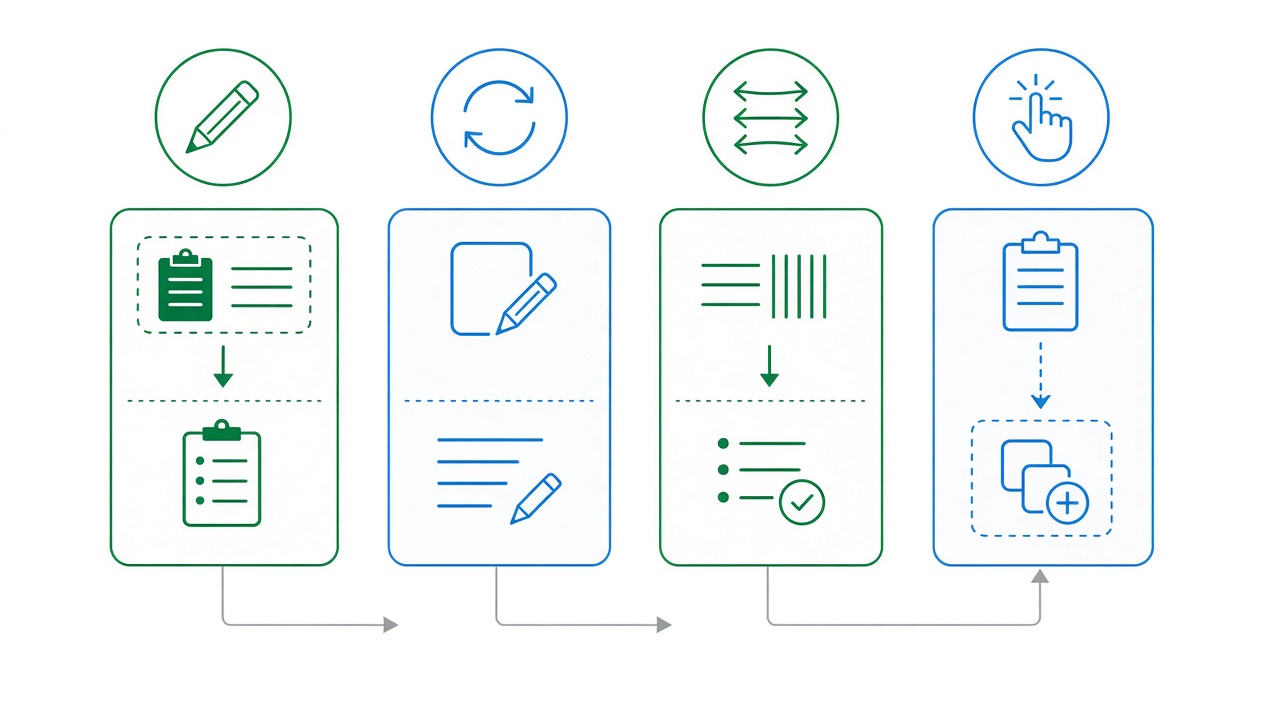
Figure 1: Typical flow across editor, repeater, minifier, and counter tools.
Online text tools compared
| Your goal | Best tool | Output shape | Deep guide |
|---|---|---|---|
| Repeat a word, line, or block N times | Text Repeater | Joined string (1 to 10,000 repeats) | This hub (Method 1) |
| Collapse whitespace, comments, blank lines | Text Minifier | Compact or single-line text | This hub (Method 2) |
| Edit code, JSON, Markdown with highlight | Online Text Editor | Downloadable file | Text editor guide |
| Plain notes, minimal UI | Online Notepad | Plain text buffer | Text editor guide |
| Count clicks or timed reps | Click Counter | Running total + history | Click counter guide |
| Trim spaces only (keep paragraphs) | Remove Whitespace | Human-readable cleanup | Use minifier for aggressive compression |
Method 1: Generate test data with the Text Repeater (recommended)
The fastest way to build controlled duplicates is our Text Repeater. Paste input, set Times Repeat (1 through 10,000), choose a Repeat Separator (None, Space, New Line, or Custom), optionally apply Case Conversion, and copy or download the output. Processing stays in your browser.
Steps
- Open the Text Repeater and paste the token you need duplicated (a word, CSV field, JSON fragment, or single character for length tests).
- Set Times Repeat to your target count. For a 1 KB string of
a, repeata1024 times with separator None. - Pick a separator: New Line for one value per row in Excel or Google Sheets; Space for paragraph filler; Custom with
,for SQL IN lists or array literals. - Use Case Conversion when you need uniform casing in generated tags or keywords.
- Click Sample to see a newline-separated example, or Clear to reset.
- Copy from the read-only Output panel or download the result as a text file.
Professional use cases
- Form validation: Submit exactly 256 or 65,536 characters to match
VARCHAR(255)or MySQLTEXTlimits and verify error messages. - API boundaries: Build bodies near nginx
client_max_body_sizeor gateway caps; expect HTTP 413 when over limit. - UI overflow: Repeat a long product name to test truncation, tooltips, and mobile line breaks before launch.
- Spreadsheet seeding: Generate repeated rows, paste into column A, then fill formulas across thousands of lines.
- Config arrays: Repeat
"item",with a comma separator, wrap in brackets, and paste into a test fixture.
CLI alternative (repeat)
# Bash: repeat a line 100 times with newlines
yes "test-row" | head -n 100

# JavaScript (Node or browser console)
"payload ".repeat(500)

# Python
print("x" * 1024)
Prefer the repeater when you need separators, case rules, and copy-ready output without opening a REPL.
Method 2: Compact strings with the Text Minifier
When whitespace is noise (wrapped secrets, log exports, HTML snippets for embedding), use the Text Minifier. Toggle options such as remove line breaks, tabs, multiple spaces, empty lines, trailing spaces, trim lines, and strip // or /* */ comments, then copy the minified output. The tool shows compression stats so you can see character reduction before pasting into an API or SMS field.
Steps
- Paste messy text (email-wrapped API key, multi-line env value, or HTML fragment) into the input area.
- Review default checkboxes: most aggressive cleanup enables line-break removal and comment stripping.
- Disable Remove Comments if you are minifying prose that happens to contain
//in URLs. - Disable Remove Line Breaks when you still need paragraph structure but want trimmed lines.
- Run minify, verify the output in context (especially JavaScript without semicolons: ASI can break when lines merge).
- Copy or download the result.
Minifier vs lighter cleanup
A full minifier targets machine-oriented strings. For articles, CMS paste, or CSV imports where you only need to collapse double spaces, try Remove Whitespace or Remove Multiple Empty Lines first. Use the minifier when readability does not matter and byte count does.
When not to minify
- Python, YAML, Makefile: Indentation is syntax. Trimming lines destroys validity.
- Markdown: Line breaks and blank lines define lists and paragraphs; minifying breaks rendering.
- Poetry or ASCII tables: Space alignment is intentional.
- Minified production JS: Re-minifying rarely helps; use your bundler's pipeline instead.
Method 3: Draft and fix text in the Online Text Editor
For structured work (JSON repair, shell scripts, Markdown READMEs, SQL one-offs), open the Online Text Editor. Choose a syntax mode, toggle HTML or Markdown preview, auto-save locally, and download with Ctrl+S / Cmd+S. Pair it with the repeater (generate bulk lines) and minifier (strip wrapping) in the same session: edit in the editor, copy to repeater or minifier, paste results back.
Full feature walkthrough: How to Use an Online Text Editor for Coding and Notes.
Method 4: Count interactions with the Click Counter
The Click Counter tracks button presses, supports custom increment steps, auto-click intervals, and timer presets for short challenges. Use it for stream games, classroom drills, manual QA tallies, or focus exercises where a spreadsheet is too slow.
Event ideas and timer mode details: Click Counter and Clicker Counter: Uses for Events and Focus.
Combined workflows (real scenarios)
API key pasted from email
- Paste into Text Minifier with line breaks and spaces removed.
- Paste cleaned key into Online Text Editor with JSON mode to drop it into a config snippet.
- Never commit the value; clear the tab after testing.
Load test CSV upload
- Build
[email protected]rows with Text Repeater (newline separator, 5,000 repeats). - Save from the repeater download or paste into the editor for a final header row.
- Upload to staging and watch importer memory and timeout behavior.
Stream giveaway
- Generate participant codes in the repeater (custom separator
,). - Run the Click Counter in timer mode during the segment.
- Export or screenshot the final count for VOD records.
Common mistakes
- Wrong separator: Comma-separated repeats pasted into a newline-only importer creates one giant cell. Match separator to the target system.
- Repeat count off by one: UI limits often use inclusive max length; generate
max+1once to confirm validation. - Minifying source code you still need to read: Keep a pretty-printed copy in Git; minify only the paste you send to a field or log.
- Assuming cloud sync: Editor auto-save is per-browser. Download important drafts before clearing site data.
- Using repeat output as production content: Repeated Lorem-style filler is for tests and mockups, not SEO pages.
Privacy and security checklist
- Treat pasted secrets as sensitive even when processing is client-side; clear fields after use on shared PCs.
- Use private windows on lab machines so
localStoragedrafts do not persist for the next user. - Do not paste live PII into repeat tools for public demos; use synthetic emails and tokens.
- Verify minified JavaScript in a sandbox before deploying embedded snippets.
- Prefer fixtures in repo for CI: generate once with a repeater, commit the file, and reference it in tests instead of hand-typing.
Related free tools
- Text Repeater - Duplicate strings with separators and case options.
- Text Minifier - Aggressive whitespace and comment cleanup.
- Online Text Editor - Syntax highlight, preview, download.
- Click Counter - Tallies and timed click challenges.
- Remove Whitespace - Lighter cleanup for readable text.
- Encrypt and Decrypt Text - Symmetric cipher workflows (see encryption guide).
Frequently Asked Questions
What are the best free online text tools for developers?
For everyday work on OnlineMiniTools, bookmark the Text Repeater for fixtures, Text Minifier for compact strings, Online Text Editor for code and JSON, and Click Counter for tallies. Each runs in the browser without an account; pair the repeater and minifier with the editor when you need to edit, bulk-generate, then compress.
How do I repeat text 1000 times online?
Open the Text Repeater, paste your string, set Times Repeat to 1000, choose a separator (newline for one value per line), and copy the output. The tool supports up to 10,000 repeats with optional uppercase, lowercase, or title case.
What is the difference between a text minifier and a whitespace remover?
A text minifier aggressively removes line breaks, tabs, multiple spaces, empty lines, and optional comments to shrink strings for APIs or single-line fields. A whitespace remover (or trim tool) normalizes spacing while keeping paragraphs readable. Use the minifier for machine-oriented values; use lighter cleanup for articles and CSV imports.
Is it safe to paste API keys into online text tools?
Repeater and minifier process text locally in your browser on OnlineMiniTools, but the clipboard, browser history, and local editor storage can still leak secrets on shared machines. Paste only test keys when possible, clear fields after use, and prefer private browsing on untrusted devices.
Which tool should I use for online coding without installing VS Code?
Use the Online Text Editor for syntax highlighting, Markdown or HTML preview, and file download. For plain quick notes, the Online Notepad is lighter. Read the dedicated text editor guide on this blog for auto-save behavior and keyboard shortcuts.
Save this online text tools hub for the next time you need fixtures, cleanup, or a quick edit tab. Start with the Text Repeater when length and count matter, switch to the Text Minifier when whitespace is the bug, and keep the text editor guide handy for everything you still need to read before you ship.


