An online click counter (also called a clicker counter, tally counter, or tap counter) increments a running total every time you press a large on-screen button or the Spacebar. You use it to count attendance at events, reps during workouts, votes in a classroom, deaths on a game stream, inventory during a stock check, or clicks during a UI test. This guide explains what click counters are, how clicks per second (CPS) and clicks per minute (CPM) are calculated, when timer mode beats a physical tally counter, and how to use our free Click Counter in your browser with no sign-up.
Install Required
Keyboard Shortcut
Max Timer Session
Browser-Only Counts
Key facts: online click counter (quick reference)
Use this block when you need a concise answer for search or AI summaries:
- Click counter means a tool that adds a fixed step (usually +1) to a total each time you activate it by tap, click, or keyboard.
- Clicker counter is the same idea as a handheld tally counter, but rendered as a web page or app instead of a mechanical device.
- CPS (clicks per second) = total clicks divided by elapsed seconds since the first click in the current session.
- CPM (clicks per minute) = total clicks divided by elapsed minutes; useful for longer tally sessions.
- Timer mode starts a countdown on your first click and stops accepting input when time reaches zero, which is ideal for speed challenges and timed audits.
- Privacy: Our Click Counter runs entirely in your browser; counts are not uploaded to a server unless you copy or share them yourself.
- Physical tally counters still win when you need one-handed counting in bright sunlight with no battery, but they cannot show live CPS or timed leaderboards without extra gear.
What is an online click counter?
A click counter online is a zero-install utility that displays a large total and increases that total on each user action. Unlike a spreadsheet cell you edit manually, the counter is optimized for rapid input: oversized tap targets, optional sound or haptic feedback, undo via decrement controls, and live speed statistics.
People search for click counter and clicker counter when they need to:
- Track headcount or entries at doors, booths, or festival gates without paper tallies.
- Score casual games, tabletop rounds, or playground matches where only one number matters.
- Log stream moments such as boss deaths, chat-triggered events, or challenge completions on camera.
- Count repetitions during exercise (push-ups, laps, breaths) when a phone is easier than a wrist counter.
- Run quick classroom polls by raising hands and tapping once per student.
- Stress-test UI buttons during QA by pairing manual clicks with timer mode.
- Practice click speed before competitive clicking games (always take breaks to avoid strain).
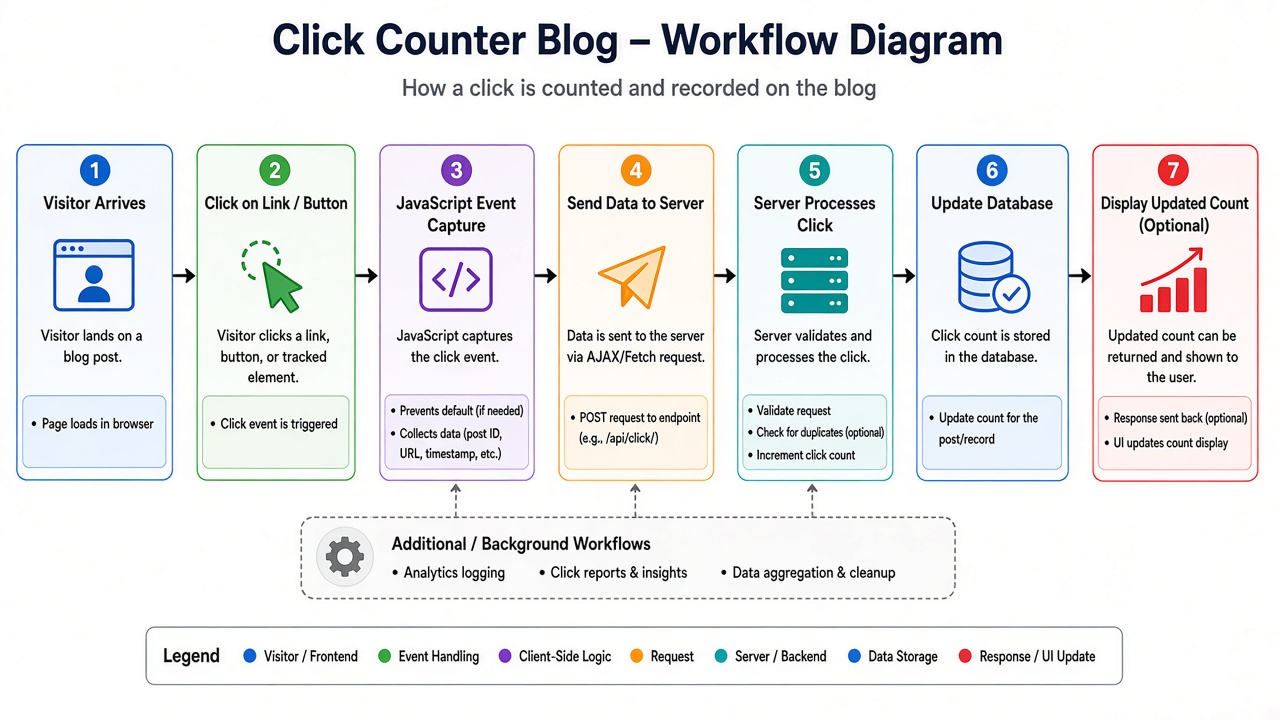
Figure 1: Typical online click counter workflow from first tap to session reset.
Click counter vs clicker counter vs tally counter
These terms overlap in everyday language. The table below maps what users usually mean:
| Term | Typical meaning | Best when |
|---|---|---|
| Click counter | Browser or app button that increments a digital total | You have a phone, tablet, or laptop nearby and want CPS or timer features. |
| Clicker counter | Same as click counter; emphasizes rapid clicking or streaming use | Speed challenges, auto-click testing, or repetitive tallying. |
| Tally counter | Mechanical thumb press counter or simple +1 web tally | Inventory walks, bird counts, or field research without typing. |
| Mouse click counter | Tracks how often you click anywhere on the desktop (analytics) | Productivity or ergonomics studies, not event headcounts. |
How CPS and CPM are calculated
Speed stats only make sense after your first click, which starts the session clock.
- Clicks per second (CPS):
total clicks ÷ seconds elapsed. Example: 45 clicks in 30 seconds → 1.5 CPS. - Clicks per minute (CPM):
total clicks ÷ minutes elapsed. Example: 300 clicks in 2 minutes → 150 CPM. - Timer-limited CPS: When timer mode ends at 0 seconds, your final click total divided by the chosen duration (5s to 600s) is your score for that run.
Human tapping speed varies widely. Casual users often land between 4 and 7 CPS in short bursts; competitive clickers train higher rates. Treat extreme speeds as a game metric, not a health goal, and stop if your hand or wrist hurts.
Online click counter vs physical tally counter
| Feature | Online Click Counter | Handheld tally counter |
|---|---|---|
| Setup time | Open a URL | Carry device in pocket |
| Live CPS / CPM | Yes | No |
| Timed sessions | Built-in countdown | Need separate stopwatch |
| Custom increment (+5, +10) | Yes | Usually +1 only |
| Works offline | After page load (session only) | Always |
| Share live total with a team | Copy number or screen-share | Read aloud or write down |
| Rain / gloves / one hand | Depends on device | Often easier |
Real-world use cases (with setup tips)
Events and venues
Assign one volunteer per entrance. Open the counter full-screen on a tablet, set increment to 1, and tap for each guest. At the end of the hour, screenshot the total or read it into your spreadsheet. For dual entrances, run two browser tabs with separate counts rather than one shared total.
Live streaming and content creation
Overlay the browser window in OBS as a browser source, or keep the counter on a second monitor. Use timer mode (30 or 60 seconds) for chat challenges ("most clicks while the timer runs"). Pair with our Scoreboard when you track two competing numbers.
Education and workshops
Project the counter during brainstorming: each idea earns a tap. Students with accessibility needs can use Spacebar instead of precise mouse clicks. Reset between activities so the number always matches the current question.
Fitness and rehabilitation
Mount your phone where you can tap between sets. Enable sound feedback for audible confirmation without looking. Set a max count limit to match prescribed reps (for example, stop at 20).
Software QA and UX research
Count how many clicks a workflow takes before timer mode stops. Export is manual (copy the total), but the click history panel helps you spot accidental double-taps during tests.
Method 1: Use the free Click Counter (easiest)
The fastest path is our Click Counter: a large circular pad, live CPS and CPM, optional timer mode, increment and max-limit controls, auto-click for stress tests, themes, and click history. Everything runs client-side in JavaScript.
Step-by-step
- Open the Click Counter page on desktop or mobile.
- (Optional) Under Click Configuration, set Increment Step (default 1) and Max Count Limit (0 means unlimited).
- (Optional) Toggle Timer Mode and pick a duration: 5, 10, 15, 30, or 60 seconds, or 2, 5, or 10 minutes.
- Tap the main button or press Spacebar (when no input field is focused) to add to the total. The first click starts the session timer if timer mode is on.
- Watch CPS, CPM, and elapsed time in the stats panel. Open Click History to audit recent increments.
- Click Reset to start a new session. Use auto-click only for legitimate testing, not to cheat competitive leaderboards.
Timer mode presets
Timer durations match the tool UI: 5s, 10s, 15s, 30s, 60s, 120s, 300s, and 600s. The countdown begins on your first click, shows a progress ring, and locks the pad when time expires. This mirrors popular "clicks in 10 seconds" challenges without installing a separate app.
Auto-click mode (testing only)
Auto-click fires repeated increments at an interval you choose (minimum 50 ms between fires, with presets such as 10/sec or 1/sec). Use it to simulate load on a prototype button or to verify that your max-count confetti trigger works. Disable auto-click during fair speed contests.
Method 2: Spreadsheet or notes app
In Google Sheets, type =A1+1 in cell A1 and press F4 or copy the formula down for each event. This scales to multiple columns (one per category) but lacks CPS, sound, and a thumb-friendly pad. Good backup when you already live inside a sheet during inventory.
Method 3: Phone calculator or watch complication
The calculator +1 trick works in a pinch: after each count, press equals again. Apple Watch and some Garmin apps offer simple counter complications. You will not get history or timer sync, but battery life is excellent.
Method 4: Dedicated hardware tally counter
Metal or plastic thumb counters cost a few dollars, survive drops, and need no Wi-Fi. Buy them for outdoor surveys or factory floors. Transfer totals to digital systems at the end of the shift.
Method 5: Browser extensions that track mouse clicks globally
Extensions labeled "click counter" often measure how many times you click anywhere in the browser for productivity analytics. They are not the same as a single-purpose tally pad. Use them for ergonomics awareness, not for counting people at an event.
Tips for accurate counts
- One role per counter: Do not share one session between two volunteers unless you reset between handoffs.
- Announce the rule: "Tap once per person" vs "tap once per item" prevents drift during long events.
- Use max limit: When counting exactly 100 samples, set max to 100 so the tool stops you at the target.
- Mute sound on stream: Toggle audio click feedback off before going live if the mic picks up beeps.
- Prevent double taps: On touch screens, train tap-and-lift; watch the history list for duplicate timestamps.
- Accessibility: Spacebar counting helps users who cannot see the pad clearly but can focus the page.
- Ergonomics: Take breaks every few minutes during speed drills to reduce repetitive strain risk.
Common mistakes
- Refreshing the page: Counts live in memory for the session; a reload resets unless you wrote the number down.
- Leaving auto-click on: Walk away and return to a surprise total. Turn auto-click off before breaks.
- Wrong increment: Increment set to 5 multiplies every tap; verify settings before a live event.
- Timer confusion: Timer mode does not start until the first click. Do not wait for a beep before tapping.
- Mixing mouse analytics with tally counting: Global click trackers measure browsing, not your event headcount.
Related free tools on OnlineMiniTools
- Timer: countdown for breaks between tally rounds.
- Stopwatch: measure open-ended sessions when you do not want a fixed timer.
- Scoreboard: track two or more competing scores side by side.
- Online Text Editor: log notes next to your final count.
Frequently Asked Questions
Is an online click counter free to use?
Yes. The OnlineMiniTools Click Counter is free, requires no account, and runs in your browser. You can count unlimited sessions without paying or signing in.
What is the difference between a click counter and a clicker counter?
There is no technical difference on our site: both terms describe the same +1 tally tool. "Clicker counter" often appears in gaming or streaming searches; "click counter" is broader and includes event and QA use cases.
How do I count clicks with the keyboard?
On the Click Counter page, press Spacebar to add one increment when you are not typing inside an input field. This mirrors tapping the large on-screen button.
Does the click counter save my data to the cloud?
No. Counts and click history stay in your browser tab for the current session. Copy the total manually if you need a permanent record, or screenshot the stats panel.
What timer lengths are available in timer mode?
You can choose 5, 10, 15, or 30 seconds, 1 minute, 2 minutes, 5 minutes, or 10 minutes. The countdown starts on your first click and stops further input when it reaches zero.
Can I use auto-click for click speed tests?
Auto-click is intended for UI testing and demonstrations. For fair speed competitions, use manual taps only and compare CPS shown after timer mode ends.
Whether you need a clicker counter for a stream overlay, a tally counter replacement at a door, or a click counter online for timed practice, start with the free Click Counter: set your increment, optionally enable timer mode, tap or press Spacebar, and copy your final total when the session ends.


