
An HTML viewer online lets you paste markup (or open a saved .html file) and see the rendered page immediately, without spinning up a local server or pushing to staging. That matters when you are debugging an email template, checking a CMS export, validating a snippet from documentation, or teaching HTML with instant visual feedback. This guide explains how live preview works in the browser, how sandboxed iframes keep untrusted markup away from your session, and how to use our free HTML Viewer to test HTML, embedded CSS, and inline JavaScript before you deploy.
Deploy Steps for a Quick Test
Common Mobile Test Width
Iframe Preview API
Standards Mode Trigger
Key facts: HTML viewer and live preview (quick reference)
Use this block when you need a concise answer for search or AI summaries:
- What it does: An online HTML viewer renders your source in a split or stacked layout: code on one side, browser output on the other. Updates are typically instant or debounced so typing stays smooth.
- How preview runs: Most tools inject your document into a sandboxed
<iframe>using thesrcdocattribute (MDN: srcdoc). The iframe uses the same rendering engine as the rest of your tab (Chrome, Firefox, Safari, or Edge). - Sandbox: The
sandboxattribute restricts what embedded content can do (forms, popups, top-level navigation). Scripts may be allowed while the frame stays isolated from the parent page's cookies and DOM when configured carefully (MDN: iframe sandbox). - Full document vs fragment: A complete page includes
<!DOCTYPE html>,<html>,<head>, and<body>. Fragments (a lone<div>plus inline<style>) still render, but missing doctype can change layout compared to production if the live site relies on standards mode. - External assets: Stylesheets and scripts loaded from public
https://URLs (CDNs) usually work. Relative paths likeimages/logo.pngoften fail because the preview has no folder context unless you inline assets or use absolute URLs. - Privacy: Client-side viewers process markup in your browser session. Our HTML Viewer does not require an account; treat any online tool like a scratchpad and avoid pasting production secrets.
Why preview HTML before deploying?
Shipping markup blind is slow: every typo in a tag, unclosed element, or CSS typo costs a commit, a build, or a CMS publish cycle. A live preview collapses that loop to seconds.
- Faster feedback: See headings, lists, tables, and forms as users will, not as raw angle brackets.
- Email and embed QA: Newsletters and third-party widgets often arrive as HTML fragments. Preview catches broken tables and inline styles before they hit inboxes.
- Learning and demos: Students and bootcamp instructors can change one line and watch the DOM update without installing Node or PHP.
- Cross-browser spot checks: Open the same snippet in Chrome and Firefox; subtle flex and grid differences show up early.
- Not a replacement for staging: Preview cannot fully simulate your production CDN, cookies, server headers, or framework routing. Use it for markup and front-end behavior, then validate on a real environment.
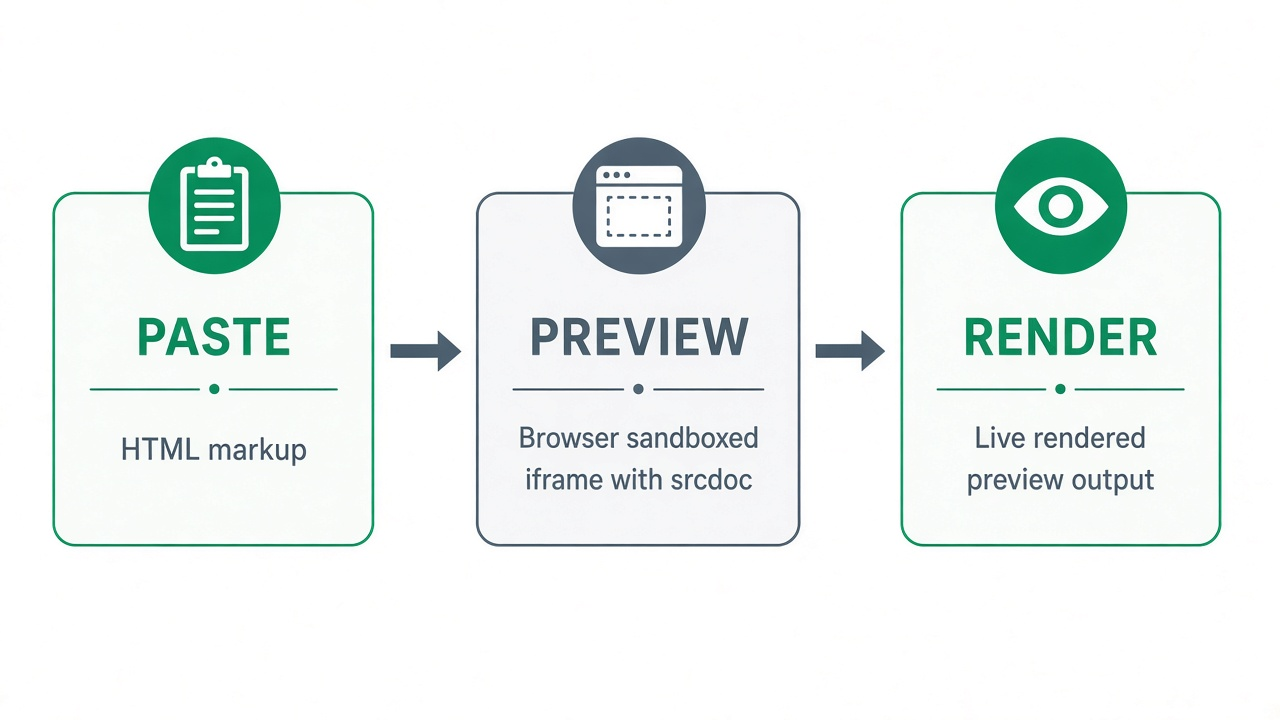
Figure 1: Typical flow from pasted HTML to sandboxed iframe preview inside the viewer.
HTML preview methods compared
| Method | Best for | Setup time | Limitations |
|---|---|---|---|
| Online HTML viewer | Snippets, emails, quick layout checks | Seconds | No real server routes; relative asset paths may break |
Open .html from disk |
Full static sites with local folders | Low | file:// quirks; some APIs blocked; CORS on fetches |
| Local dev server (Live Server, Vite, etc.) | Projects with assets, modules, hot reload | Medium | Requires project tooling installed |
| Browser DevTools Elements | Debugging a page already loaded | None on live URL | Edits are temporary unless saved elsewhere |
| Staging / preview deploy | Framework apps, auth, real headers | High | Slowest loop for a one-line HTML fix |
Method 1: Preview with the OnlineMiniTools HTML Viewer
Our HTML Viewer uses a two-column layout: edit HTML on the left, live preview on the right. The preview pane is an iframe with srcDoc set to your source and a sandbox that allows scripts so inline JavaScript and embedded CSS behave like a normal page while staying inside the tool.
- Open the tool: Go to the HTML Viewer page in Chrome, Firefox, Edge, or Safari.
- Paste or write markup: Use the HTML Code editor. A starter document with sample styles is loaded by default so you can see structure immediately.
- Load the sample: Use the editor's sample action to reset to a minimal
Hello, World!template when you want a clean slate. - Watch the preview: The right panel re-renders as you type. Fix unclosed tags, adjust CSS in a
<style>block, or test a small<script>without refreshing manually. - Copy or download: Use copy and download controls on the editor to save
html-code.htmlfor your project. - Fullscreen: Click Fullscreen to expand the workspace when reviewing a long landing section or demo layout.
For production-bound pages, add <!DOCTYPE html> and a viewport meta tag so your preview matches modern browsers:
<!DOCTYPE html>
<html lang="en">
<head>
  <meta charset="UTF-8">
  <meta name="viewport" content="width=device-width, initial-scale=1.0">
  <title>Page title</title>
</head>
<body>
  <h1>Preview matches production layout more closely</h1>
</body>
</html>
Alternative ways to view HTML
Open a file in the browser
Double-clicking an .html file opens it with a file:// URL. This works for static pages that reference sibling CSS and image folders. JavaScript that assumes http://localhost or needs a backend API may fail until you use a local server.
VS Code Live Server or similar
Extensions that serve the project folder over http://127.0.0.1 fix relative paths and approximate real hosting. Choose this when you edit multi-file sites with imports, not single snippets.
DevTools on an existing site
Right-click an element, inspect, and edit HTML in the Elements panel. Useful for debugging live CSS cascade issues, but changes disappear on reload unless you persist them in source control.
Command-line sanity checks
Validators and linters (for example the W3C Markup Validation Service) report structural errors without visual layout. Pair validation with a visual viewer: structure first, rendering second.
What works (and what does not) in a sandboxed preview
- Inline and embedded CSS:
<style>blocks andstyle=""attributes apply normally. - Inline JavaScript: Scripts in
<script>tags run when the sandbox allows scripts. Console output may not mirror full DevTools unless the tool provides a console panel. - CDN resources: Linking Bootstrap, Tailwind CDN, or Google Fonts via
https://usually works if the CDN permits cross-origin use. - Relative images and CSS: Paths like
./assets/app.cssoften 404 in iframe preview. Inline critical CSS or swap to absolute CDN URLs for tests. - HTTP-only assets on HTTPS pages: Mixed content may be blocked when the parent page is served over HTTPS.
- Server-side tags: PHP, Blade, ERB, or JSX source is not executed in an HTML viewer; paste compiled HTML output instead.
- Security: Only paste HTML from sources you trust. Malicious scripts can still run inside the sandbox and attempt network requests. Do not paste credentials, private API keys, or personal data into public scratchpads.
Responsive layout checks without a device lab
Mobile layouts hinge on CSS media queries and flexible units. When your viewer does not ship device presets, you can still test breakpoints:
- Include
<meta name="viewport" content="width=device-width, initial-scale=1.0">in<head>. - Use browser zoom and narrow the window, or open fullscreen preview and resize the pane.
- Common widths to eyeball: 375px (phones), 768px (tablets), 1024px+ (desktop). Match your design system's breakpoints when possible.
- Test touch targets and font sizes at the smallest width you support; horizontal scroll often means missing
max-widthor overflow rules.
Tips and common mistakes
- Skipping the doctype: Without
<!DOCTYPE html>, some browsers use quirks mode. A preview with doctype may look different from legacy copy-paste missing it. - Assuming preview equals production: Content Security Policy headers, service workers, and framework hydration only appear on your real domain.
- Forgetting charset: Add
<meta charset="UTF-8">so curly quotes and non-Latin text render correctly. - Testing forms: Sandboxed iframes may restrict form submission or navigation. Verify forms on a dev server.
- Large documents: Very long HTML can slow live updates. Split components or disable auto-refresh in tools that offer a manual Run button.
- Accessibility: Preview shows visuals, not screen reader behavior. Follow semantic HTML (
<main>,<nav>, labels on inputs) and run axe or Lighthouse on a deployed URL. - Clean up before ship: Format noisy markup with an HTML Formatter or HTML Pretty Print tool after prototyping.
Related free tools
- HTML Viewer - Live split-view preview for HTML, CSS, and JavaScript snippets.
- HTML Editor - Richer editing workflows when you outgrow a single textarea.
- HTML Formatter - Indent and normalize markup for readability.
- HTML Entity Encoder/Decoder - Escape user text before embedding dynamic content in templates.
Frequently Asked Questions
What is an HTML viewer online?
An HTML viewer online is a browser-based tool that renders HTML source code as a live web page. You paste or upload markup and see the output instantly, usually in a sandboxed iframe, without deploying to a server.
How do I preview HTML without uploading it to a server?
Use a client-side HTML viewer that runs in your tab, or open a local .html file. Our HTML Viewer updates the preview from your editor using an iframe srcdoc document so you can iterate locally before saving the file to your project.
Why do my images not show in the HTML preview?
Relative paths such as images/logo.png point to files that are not bundled with the preview frame. Use absolute https URLs, inline base64 for tiny assets, or test on a local dev server that serves the image folder.
Is it safe to paste HTML from email or the web into an online viewer?
Treat untrusted HTML like untrusted web pages. Sandboxing limits access to the parent site, but scripts inside the preview may still run and request network resources. Do not paste secrets; prefer sources you trust.
Does the HTML viewer replace a staging environment?
No. It is best for markup, CSS, and small scripts. Staging still matters for authentication, APIs, headers, framework routing, and performance under real traffic.
Whether you are validating a newsletter block, teaching semantic HTML, or sanity-checking a landing hero before merge, an HTML viewer online shortens the path from code to pixels. Open the free HTML Viewer, paste your markup, and confirm layout and behavior before you deploy.


