Need to take a screenshot in your browser without installing extensions or desktop apps? You can capture a full screen, a single window, a browser tab, or even a full scrolling page using built-in browser features or a free online tool. This guide covers every practical method, starting with our privacy-first Screenshot Tool, then Chrome DevTools, Firefox, Edge, and OS shortcuts.
Extensions Needed
Capture Modes
Export Formats
Local Processing
What is an online screenshot tool?
An online screenshot tool uses your browser's Screen Capture API (part of the web platform) to grab pixels from your display, a window, or a tab. Unlike Print Screen or the Windows Snipping Tool, a good browser screenshot workflow can also capture full scrolling pages through DevTools or dedicated browser menus.
Common reasons people search for a screenshot online solution:
- Bug reports: Show developers exactly what you see, including UI state and error messages.
- Documentation: Build tutorials, SOPs, and support articles with visual steps.
- Design reviews: Capture layouts at different viewport sizes for feedback.
- Locked-down machines: Capture without installing software when IT blocks extensions.
- Full-page archives: Save long articles, receipts, or dashboards as one tall image.
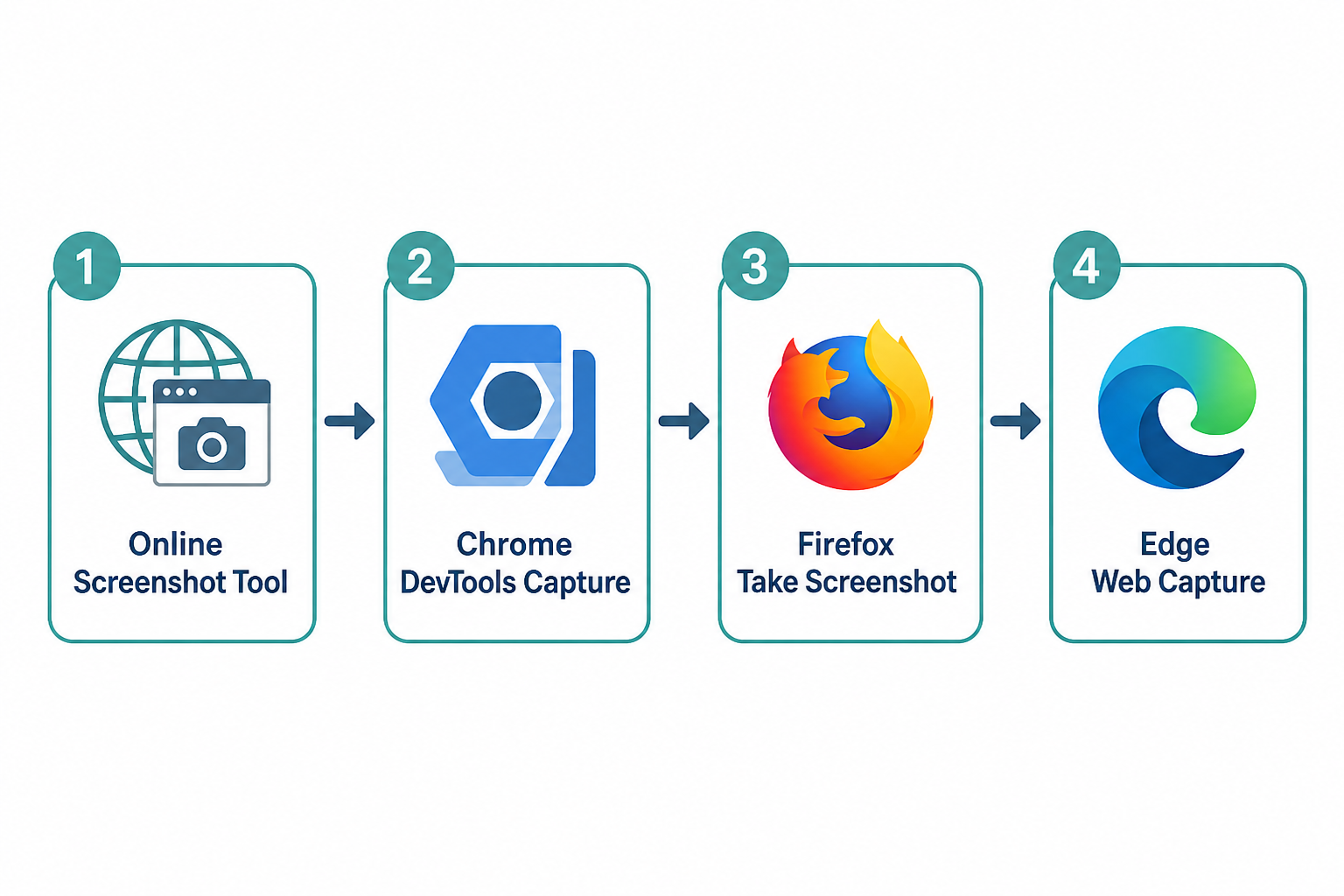
Figure 1: Four reliable ways to capture screenshots in modern browsers.
Screenshot methods compared
Pick the method that matches your browser and whether you need a visible area, a window, or a full scrolling page:
| Method | Best For | Full Page? | Install Required? |
|---|---|---|---|
| Online Screenshot Tool | Screen, window, or tab with PNG/JPEG/WebP export | Visible area / tab | No |
| Chrome DevTools | Full scrolling page as PNG | Yes | No |
| Firefox Take Screenshot | Quick full page or visible area | Yes | No |
| Edge Web Capture | Full page plus markup tools | Yes | No |
| OS shortcuts (PrtScn / Cmd+Shift) | Fast visible desktop or region capture | No | No |
Method 1: Capture with the free online Screenshot Tool (easiest)
The fastest no-install option for capturing your screen, an app window, or a browser tab is our free Screenshot Tool. It runs entirely in your browser using the Screen Capture API. Images stay on your device until you download or copy them.
Steps:
- Open the Screenshot Tool page.
- Choose a capture mode: Full Screen, Application Window, or Browser Tab.
- Select an export format: PNG (lossless), JPEG (smaller files), or WebP (modern compression). For JPEG/WebP, adjust quality if needed.
- Click Take Screenshot. Your browser asks you to pick what to share. Select the target and click Share.
- Preview the capture, then Download the image or Copy it to your clipboard.
Privacy tip: Capture happens locally. The tool does not upload your screenshot to a remote server.
Method 2: Full-page screenshot in Chrome (DevTools)
Chrome does not put full-page capture on the main menu, but DevTools includes a reliable built-in command that works the same on Windows, macOS, and Linux.
- Open the page you want to capture and scroll to the top if possible.
- Open DevTools with
F12(orCtrl+Shift+I/Cmd+Option+Ion Mac). - Open the Command Menu with
Ctrl+Shift+P(Windows/Linux) orCmd+Shift+P(Mac). - Type
screenshot. - Choose Capture full size screenshot. Chrome saves a PNG to your Downloads folder.
The same Command Menu also offers Capture screenshot (visible viewport), Capture area screenshot, and Capture node screenshot (after selecting an element in the Elements panel).
Known limitations: Lazy-loaded images below the fold may appear blank, and sticky headers can repeat in the stitched image. For those pages, scroll through the content first so images load, then capture again.
Method 3: Full-page screenshot in Firefox
Firefox includes a dedicated screenshot UI that is simpler than Chrome's DevTools path:
- Right-click an empty area on the page and choose Take Screenshot, or press
Ctrl+Shift+S(Cmd+Shift+Son Mac). - Click Save full page for the entire scrolling document, or Save visible for the current viewport.
- You can also drag to select a custom region, then download or copy the result.
Method 4: Full-page screenshot in Microsoft Edge
Edge ships Web Capture with annotation tools built in:
- Press
Ctrl+Shift+S(Cmd+Shift+Son Mac), or open the menu and choose Web capture. - Select Capture full page (or a freeform region).
- Optionally draw comments or highlights, then copy or save the image.
Method 5: OS shortcuts (visible area only)
Desktop shortcuts are fast for the visible screen, but they do not capture content below the fold:
- Windows:
PrtScn,Win+Shift+S(Snipping Tool), orAlt+PrtScnfor the active window. - macOS:
Cmd+Shift+3(full screen),Cmd+Shift+4(selection),Cmd+Shift+5(capture toolbar). - Linux: Often
PrtScnor a desktop environment screenshot utility (GNOME Screenshot, Spectacle, Flameshot).
For a true full-page web capture on Windows or Mac, use Chrome DevTools, Firefox Take Screenshot, or Edge Web Capture instead of the OS snipping tools.
Online tools vs extensions vs cloud URL capture
Not every "screenshot online" product works the same way. Understanding the trust model helps you avoid leaking private pages:
- Browser-local tools (like ours): Use
getDisplayMediaor canvas capture on your device. Best for private dashboards and logged-in sessions. - Browser extensions: Convenient one-click full-page capture, but review permissions carefully. Prefer extensions limited to
activeTab. Broad<all_urls>access can read every page you visit. - Cloud URL screenshot services: You paste a public URL and a remote server renders the page. Fine for public sites. Avoid for pages behind logins, firewalls, or personal data.
Tips for clearer screenshots
- Use PNG for UI text and sharp graphics. Use JPEG or WebP when file size matters more than perfect edges.
- Hide personal info (email, account numbers, tokens) before you capture or redact after download.
- Close unrelated tabs and notifications so they do not appear in full-screen captures.
- For multi-monitor setups, confirm which display you selected in the browser permission dialog.
- After capture, resize or compress large images with an Image Resizer or Image Compressor before uploading to tickets or docs.
Related free tools
- Screenshot Tool - Capture screen, window, or tab online and export PNG, JPEG, or WebP.
- Screen Recorder - Record your screen when a still image is not enough.
- Image Resizer - Resize screenshots for docs, email, or social posts.
- PNG to JPG Converter - Convert lossless PNGs to smaller JPEG files.
Frequently Asked Questions
How do I take a full-page screenshot in Chrome without an extension?
Open DevTools (F12), press Ctrl+Shift+P (Cmd+Shift+P on Mac), type screenshot, and select Capture full size screenshot. Chrome saves a PNG of the full scrolling page to your Downloads folder.
Can the Windows Snipping Tool capture a full scrolling webpage?
No. Snipping Tool and Print Screen only capture the visible area. For a full page on Windows, use Chrome DevTools, Edge Web Capture, or Firefox Take Screenshot.
Is an online screenshot tool safe for private pages?
It depends on how the tool works. Browser-local tools that use the Screen Capture API keep pixels on your device. Cloud tools that fetch a URL on a remote server can see public page content, so avoid them for private or logged-in pages.
What image format should I use for screenshots?
Choose PNG for sharp text and UI graphics. Choose JPEG or WebP when you need a smaller file for email or chat. Our Screenshot Tool supports all three formats.
Why are parts of my full-page screenshot blank?
Many sites lazy-load images as you scroll. Scroll through the page first so media loads, then run Capture full size screenshot again. Sticky headers can also repeat in some DevTools captures.
Whether you need a quick tab capture or a full scrolling page archive, modern browsers already include solid screenshot features. For everyday screen, window, and tab captures with local processing and flexible formats, try the free Screenshot Tool and save or copy your image in seconds.


