How to Download a Website Favicon | Free Online Tool

Want to download a favicon from a website without digging through source code? Paste the site URL into a favicon downloader, preview every icon the site exposes, and save PNG, ICO, SVG, or other formats in one click. This guide covers the free online method, plus manual and CLI options when you need more control.
Common Icon Sizes
Formats You Will See
To Fetch All Variants
Browser-Only Workflow
What is a favicon (and why grab one)?
A favicon is the small brand icon shown in browser tabs, bookmarks, history, and often search results.
Modern sites rarely ship a single 16×16 file. They publish a set: a classic favicon.ico, PNG tab icons, an Apple Touch icon for iOS home screens, SVG icons for crisp scaling, and larger PWA icons in a web app manifest.
People use a favicon grabber or favicon extractor for practical jobs:
- Design mockups: Drop a real brand mark into wireframes, pitch decks, or competitor boards.
- Link directories and bookmarks UIs: Show the correct site icon next to a URL list.
- Brand audits: Check whether a site still serves a blurry ICO or a sharp high-res PNG/SVG.
- Asset recovery: Recover a logo mark when you only have the live domain, not the original design files.
Where websites hide favicons
Before you download anything, it helps to know the usual locations a website favicon downloader checks:
/favicon.ico: Legacy root fallback. Many crawlers and older clients still request this path first.<link rel="icon">: Declared tab icons (PNG, SVG, or ICO) with optionalsizesandtype.<link rel="apple-touch-icon">: Usually a 180×180 PNG for iOS “Add to Home Screen”.- Web app manifest: 192×192 and 512×512 PNGs for Android and installable PWAs.
- CDN or cached copies: Some tools also resolve a high-quality cached icon when HTML parsing is incomplete.
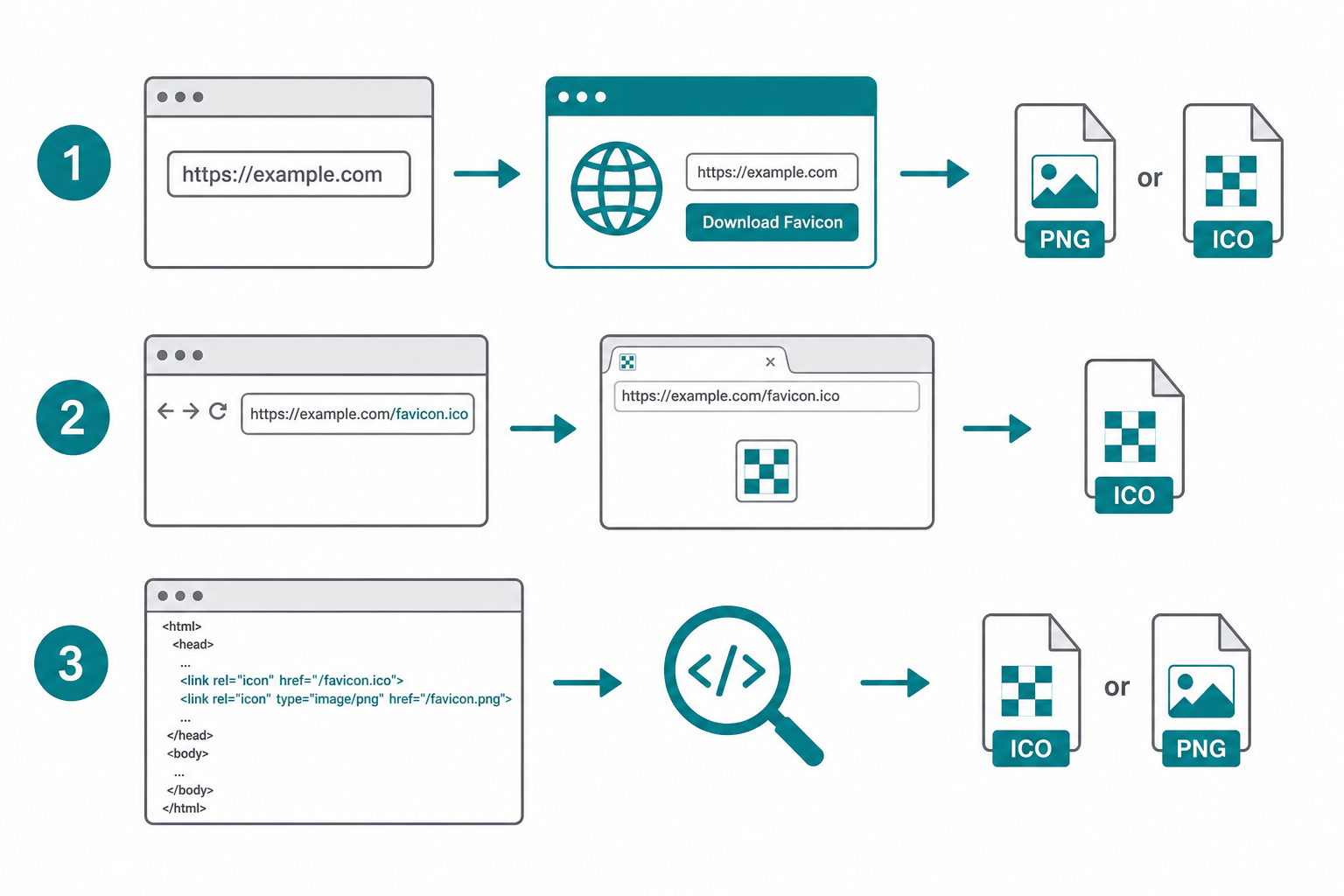
Figure 1: Online fetch, root ICO, and HTML inspection are the three reliable paths.
Favicon sizes and formats cheat sheet
Pick the variant that matches your use case. Larger sources scale down cleanly; tiny tab icons look soft when enlarged.
| Asset | Typical Size | Format | Best For |
|---|---|---|---|
| Tab / bookmark icon | 16×16 or 32×32 | ICO or PNG | Browser chrome, tiny UI chips |
| SVG favicon | Any (vector) | SVG | Crisp scaling, modern browsers |
| Apple Touch icon | 180×180 | PNG | iOS home screen, sharper mockups |
| PWA / Android icons | 192×192, 512×512 | PNG | Install prompts, high-res brand marks |
Download methods compared
| Method | Finds Multiple Sizes? | Skill Level | Best For |
|---|---|---|---|
| Online favicon downloader | Yes | Beginner | Fast grab with preview and download |
Open /favicon.ico or View Source |
Sometimes | Intermediate | One-off checks when you know the path |
| curl / favicon API | Depends | Advanced | Scripts, batch jobs, local pipelines |
Method 1: Use a free website favicon downloader (easiest)
The quickest way to download favicon from website URLs is our free
Website Favicon Downloader.
Enter a full URL (with https://), click Fetch, then download the size and format you need.
- Open the Website Favicon Downloader.
- Paste the site address into the URL field (include the protocol, for example
https://example.com). - Click Fetch (or press Enter).
- Review the returned icons: dimensions, file size, and extension (PNG, ICO, SVG, and more when available).
- Click Download on the variant you want. Prefer the largest sharp PNG or SVG for design work; keep ICO when you need the classic tab file.
If a site returns several icons, choose the highest resolution that still looks clean. A 180×180 Apple Touch icon or 512×512 PWA icon is usually better for presentations than a 16×16 tab favicon.
Method 2: Grab it manually in the browser
When you want to see exactly what the site declares, use these quick checks:
Try the root ICO
- Visit
https://example.com/favicon.ico(replace with the real domain). - If an icon loads, right-click and choose Save image as….
This fails on many modern sites that only declare icons via HTML or a CDN path.
Inspect the HTML head
- Open the website, then View Page Source (or Inspect).
- Search for
rel="icon",apple-touch-icon, ormanifest. - Copy the
href, open that absolute URL in a new tab, and save the file.
Relative paths like /icons/icon-192.png resolve against the site origin. Absolute CDN URLs can be copied as-is.
Method 3: Download with curl (for scripts)
For automation or offline workflows, fetch a known icon URL directly:
curl -L "https://example.com/favicon.ico" -o favicon.icoIf you only need a cached square PNG for a directory UI, Google’s undocumented favicon endpoint is a common shortcut (subject to change and rate limits):
curl -L "https://www.google.com/s2/favicons?domain=example.com&sz=128" -o favicon.pngPrefer the site’s own declared assets when quality matters. Cached API icons are convenient for lists, but they are often smaller and may lag behind a rebrand.
Tips and common mistakes
- Always include https://: Many downloaders validate a full URL. Bare domains can fail validation.
- Do not upscale a 16×16 ICO: It will look blocky. Grab the Apple Touch or manifest icon instead.
- SVG vs PNG: SVG stays sharp at any size. PNG is safer for slides, email, and tools that reject vectors.
- Check usage rights: Downloading a favicon for personal mockups is common. Reusing a brand mark commercially may require permission.
- Empty results: Private sites, strict bot blocking, or missing icon tags can block fetches. Fall back to View Source or ask for the design file.
- Wrong “logo”: Some pages declare a tiny mono mark for tabs and a different full-color logo elsewhere. Preview before you commit.
Related free tools
- Website Favicon Downloader - Fetch and download icons from any public URL.
- Favicon Generator - Create a favicon set from your own logo.
- PNG to ICO Converter - Convert a PNG mark into a classic favicon.ico.
- ICO to PNG Converter - Extract a PNG from an ICO for design tools.
Frequently Asked Questions
How do I download a favicon from a website for free?
Paste the full site URL into a free favicon downloader, fetch the available icons, then download the PNG, ICO, or SVG variant you need. You can also open /favicon.ico or the link href from the page source and save the image manually.
What format should I download: PNG or ICO?
Use PNG (or SVG) for design work, presentations, and high-resolution previews. Use ICO when you need the classic multi-size favicon file for legacy browser support or to replace /favicon.ico on a site.
Why is the favicon I downloaded blurry?
You likely saved the tiny tab icon (often 16×16). Look for a larger apple-touch-icon or PWA icon (180×180, 192×192, or 512×512). Those stay sharper when placed in mockups.
Can I extract every favicon size a site provides?
Often yes. A good website favicon downloader returns multiple variants with dimensions and file type. Manual inspection of link tags and the web manifest can reveal additional sizes the automated fetch missed.
Is it legal to download someone else’s favicon?
Saving an icon for personal reference or a temporary mockup is common practice, but brand marks are typically protected. Do not republish or use a company’s favicon commercially without permission.
Favicons live in more places than /favicon.ico, and the best file for your job is usually the largest clean PNG or SVG, not the tiny tab icon. When you need a fast grab, open the free Website Favicon Downloader above, paste the URL, and download the variant that matches your use case.