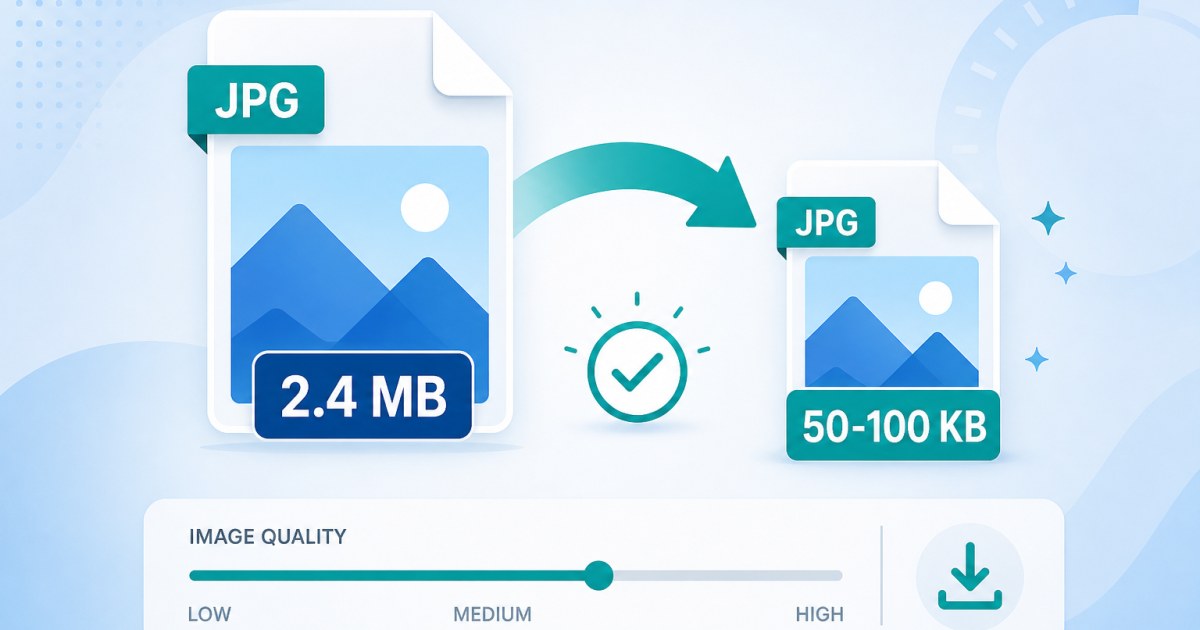
Job portals, university admissions, and government websites often require JPG photos between 50KB and 100KB. If your image is 2MB or 500KB, the upload will fail. This guide explains how to compress photos from 50KB to 100KB online, free, in your browser, with better quality than ultra-tiny 10KB or 20KB limits.
Why do forms require 50KB to 100KB photo sizes?
The 50–100KB range is one of the most common file size requirements on the web. It balances image clarity with fast uploads on slow connections. Unlike strict 10KB or 20KB passport photos, a 50KB to 100KB JPG gives enough room for readable faces, signatures, and document scans.
Typical use cases include:
- Job and recruitment portals, profile photos, resume attachments, and ID uploads
- University and college admissions, student photo uploads with minimum and maximum KB limits
- Government e-services, certificate applications, license renewals, and welfare scheme registrations
- Banking and KYC verification, identity document photos with size caps
- Exam registrations, larger than passport-size limits but still under 100KB
According to search demand, queries like photo compress 50 to 100 kb, 50 to 100 kb photo size jpg, and 50kb to 100kb converter are among the highest-volume image compression searches, which is why getting this size right matters.
50KB vs 100KB: which target should you choose?
Forms word their limits differently. Read the instructions carefully before compressing:
| Form requirement | What to do | Recommended target |
|---|---|---|
| "Maximum 100KB" | File must be ≤ 100KB | Compress to 80–95KB for a safety margin |
| "Between 50KB and 100KB" | File must fall inside the range | Target 70–80KB (middle of range) |
| "Minimum 50KB, maximum 100KB" | Too small is also rejected | Target 60–90KB |
| "Approximately 50KB" | Exact size expected | Compress to 48–52KB |
| "Less than 20KB" | Different requirement entirely | Use our 20KB compression guide |
How to compress photos from 50KB to 100KB online
Use our free Image Compressor, it targets an exact file size and runs entirely in your browser.
Step 1: Open the 50KB to 100KB compressor
Go directly to the dedicated page:
- Compress Image 50KB to 100KB, works with JPG, PNG, WebP, GIF, and ICO
- Compress JPEG Image 50KB to 100KB, optimized for JPG/JPEG photos
Step 2: Upload your photo
Drag and drop your image or click to browse. Phone camera photos are often 2–8MB, that is normal. The tool accepts JPG, PNG, WebP, and other common formats. Processing happens locally on your device; your photo is never sent to a server.
Step 3: Set your target size
Enter your required KB value (e.g. 75KB if the form asks for 50–100KB). The compressor automatically adjusts JPEG quality until the output matches your target.
Step 4: Preview and download
Check the preview for clarity, faces should be readable, text on documents should be legible. Download the file and verify the size in your file manager before uploading to the form.
Why JPG is the best format for 50KB to 100KB photos
Most forms that specify 50 to 100 kb photo size jpg require JPEG format. Here is how formats compare at this size range:
- JPG / JPEG, best choice for photographs, portraits, and scans. Lossy compression keeps files small while preserving acceptable detail at 50–100KB.
- PNG, lossless, but photos often exceed 100KB even after compression. Use PNG only if the form explicitly requires it. Try the PNG 50KB to 100KB compressor if needed.
- WebP, modern and efficient, but many government portals only accept JPG. Convert to JPG before uploading unless WebP is listed.
If your source image is HEIC (iPhone default), convert it first with our HEIC to JPG Converter, then compress to the target KB size.
Tips to get the best quality at 50KB to 100KB
- Resize before compressing, a 4000×3000 pixel photo wastes space. Resize to the form's required dimensions first using the Image Resizer (common sizes: 200×200, 300×300, or 413×531 px).
- Crop unnecessary background, passport-style photos with white space around the head compress poorly. Use the Crop Image tool to trim first.
- Start from the highest quality source, compressing an already-compressed JPG causes visible artifacts. Use the original camera photo when possible.
- Target the middle of the range, for a 50–100KB requirement, aim for 70–80KB. This leaves room if the portal measures size differently (KB vs KiB).
- Check both file size and dimensions, some portals reject photos that meet the KB limit but exceed pixel dimensions.
Common mistakes when compressing to 50KB to 100KB
- Uploading a PNG when JPG is required, even if the file is under 100KB, the portal may reject non-JPG formats.
- Compressing too aggressively, hitting exactly 50KB when the form allows up to 100KB wastes quality. Use the full range when you can.
- Ignoring minimum size limits, some forms reject photos under 50KB. If you over-compress to 30KB, the upload fails.
- Skipping the preview, always zoom in on faces and text before submitting.
- Using screenshot tools, screenshots of photos produce larger, lower-quality files. Use the original image file instead.
50KB to 100KB vs other common photo size limits
| Size range | Typical use | Quality level |
|---|---|---|
| 10KB – 20KB | Passport photos, strict government forms | Low, faces may look soft |
| 50KB – 100KB | Job portals, admissions, KYC | Good, readable faces and documents |
| 100KB – 200KB | General document uploads, certificates | High, suitable for detailed scans |
| 200KB – 500KB | Portfolio uploads, high-detail images | Very high |
Related free tools
- Compress Image 50KB to 100KB
- Compress JPEG 50KB to 100KB
- Compress PNG 50KB to 100KB
- Compress WebP 50KB to 100KB
- Image Compressor, any custom KB target
- Image Resizer
- Crop Image
- How to Compress an Image to 20KB, for smaller size limits
Frequently Asked Questions
How do I compress a photo from 50KB to 100KB?
Upload your JPG to the compress image 50KB to 100KB tool, set your target size (e.g. 75KB), and download the result. The tool adjusts quality automatically to hit your exact KB target.
What is the best KB size for a 50KB to 100KB photo requirement?
If the form says "between 50KB and 100KB," target 70–80KB. This sits in the middle of the range and avoids rejection for being too small or too large. If the form says "maximum 100KB," aim for 85–95KB to preserve quality while staying under the limit.
How do I convert a photo to 50 to 100 KB JPG size?
First make sure your image is in JPG format. If it is HEIC or PNG, convert to JPG. Then use the JPEG 50KB to 100KB compressor to reduce the file size to your target.
Why does my 50KB photo get rejected by the upload form?
Common reasons: the form requires a minimum size (e.g. at least 50KB and your file is 45KB), wrong format (PNG instead of JPG), wrong dimensions (pixels too large), or the portal measures size in bytes differently. Try targeting 70KB JPG and verify both file size and pixel dimensions.
Is 50KB to 100KB enough quality for a passport or ID photo?
Yes, 50KB to 100KB is significantly more than the 10KB–20KB limits used by strict passport forms. At this range, faces and document text remain clear. For very detailed scans, you may prefer 100KB–200KB if the form allows it.
Can I compress multiple photos to 50KB to 100KB at once?
Yes. The Image Compressor supports batch uploads. Set the same target KB for each image and download them individually or as a batch.
Is it safe to compress photos online?
Yes. Our compressor processes images entirely in your browser using Web Workers. Photos are never uploaded to a server, so your personal images and documents stay private on your device.
Whether you need to photo compress 50 to 100 kb for a job application, compress a 50 to 100 kb photo size jpg for university admission, or use a 50kb to 100kb converter for a government portal, the process takes under a minute. Bookmark the tools above and use this guide whenever a form specifies the 50–100KB range.


